Step 1
Turn on your inReach Mini 2.
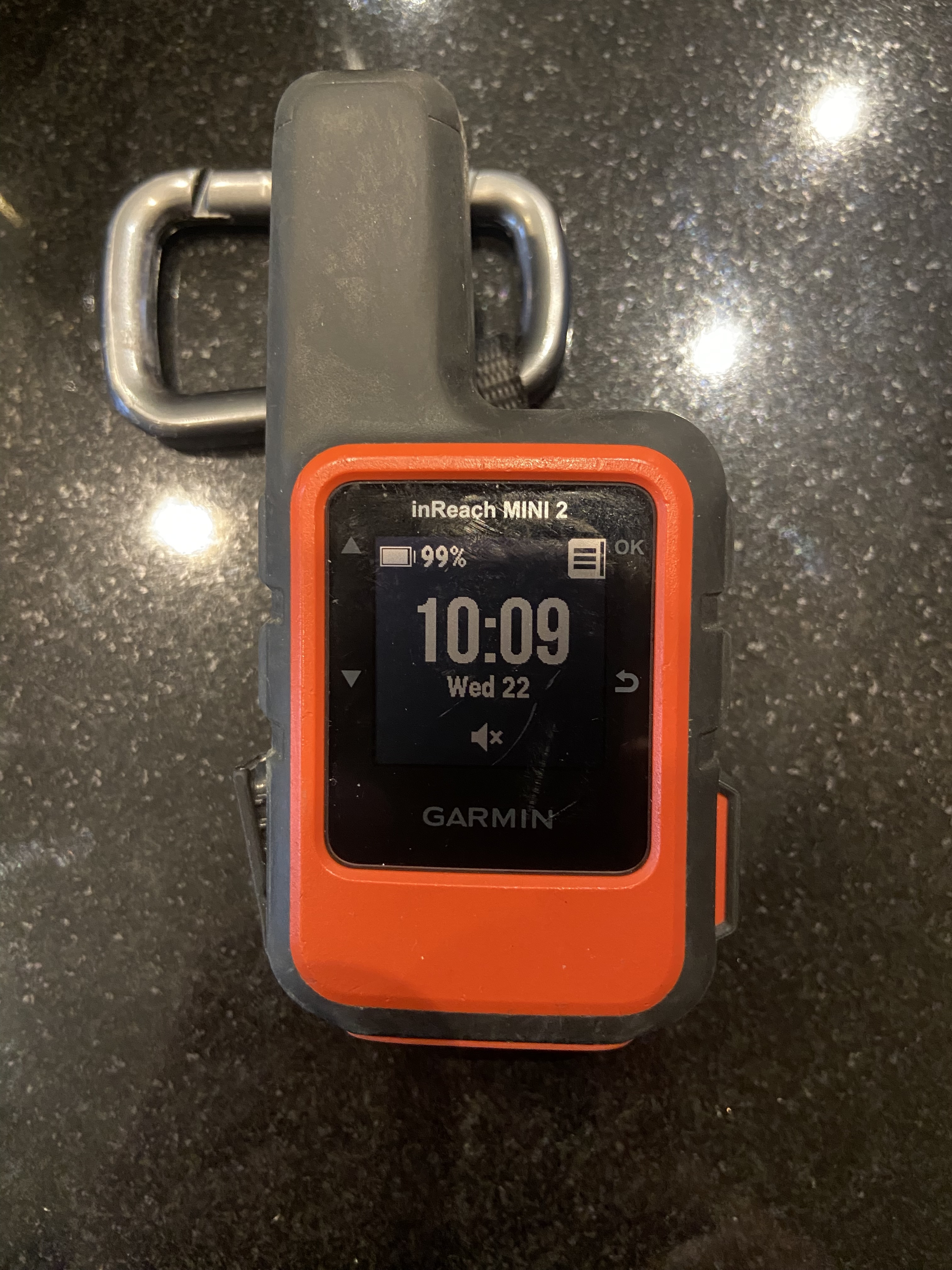
A simple workflow for sending Garmin inReach Mini 2 preset check-in messages during a hike.
Turn on your inReach Mini 2.
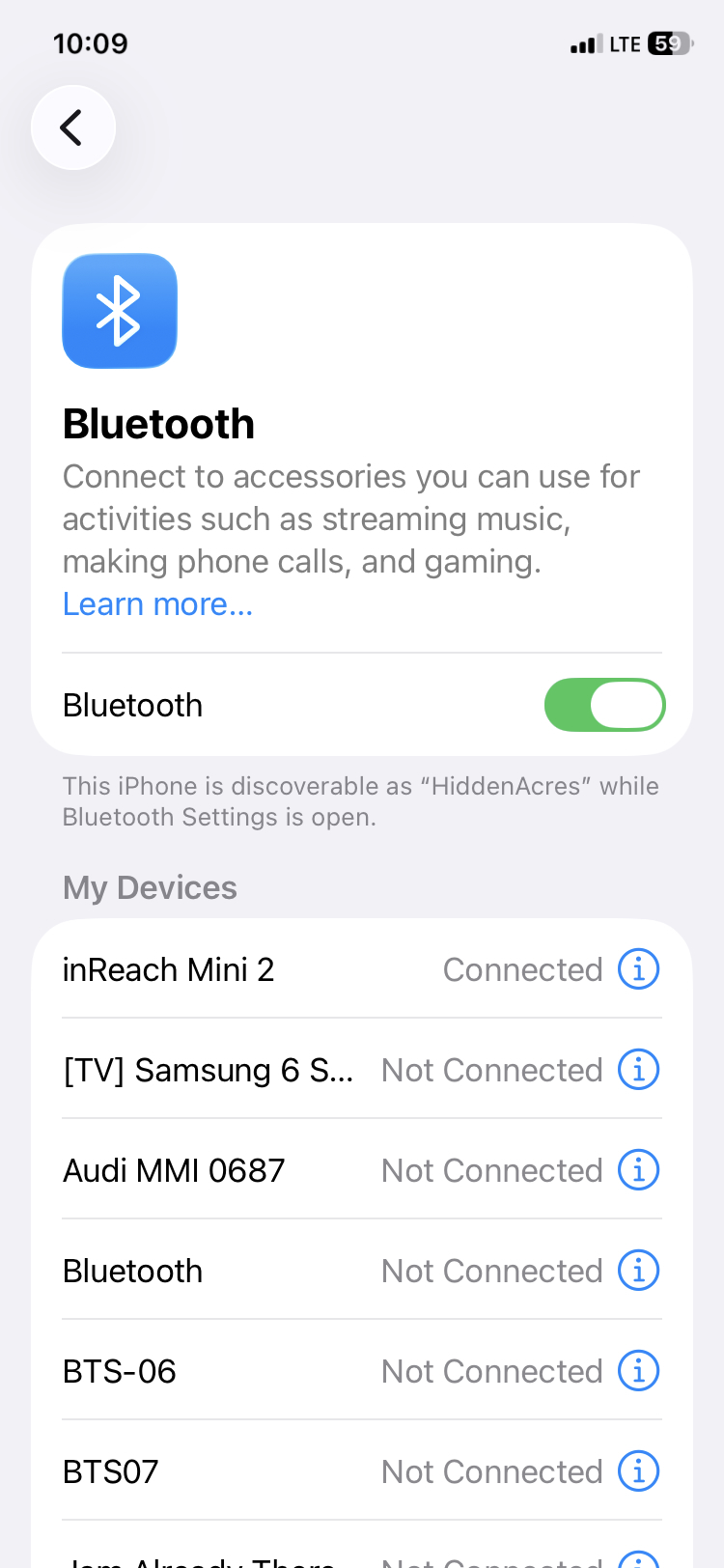
Make sure your inReach Mini 2 is already connected to your iPhone via Bluetooth.
Open the Garmin Messenger app on your iPhone. At the bottom of the screen, tap Device.
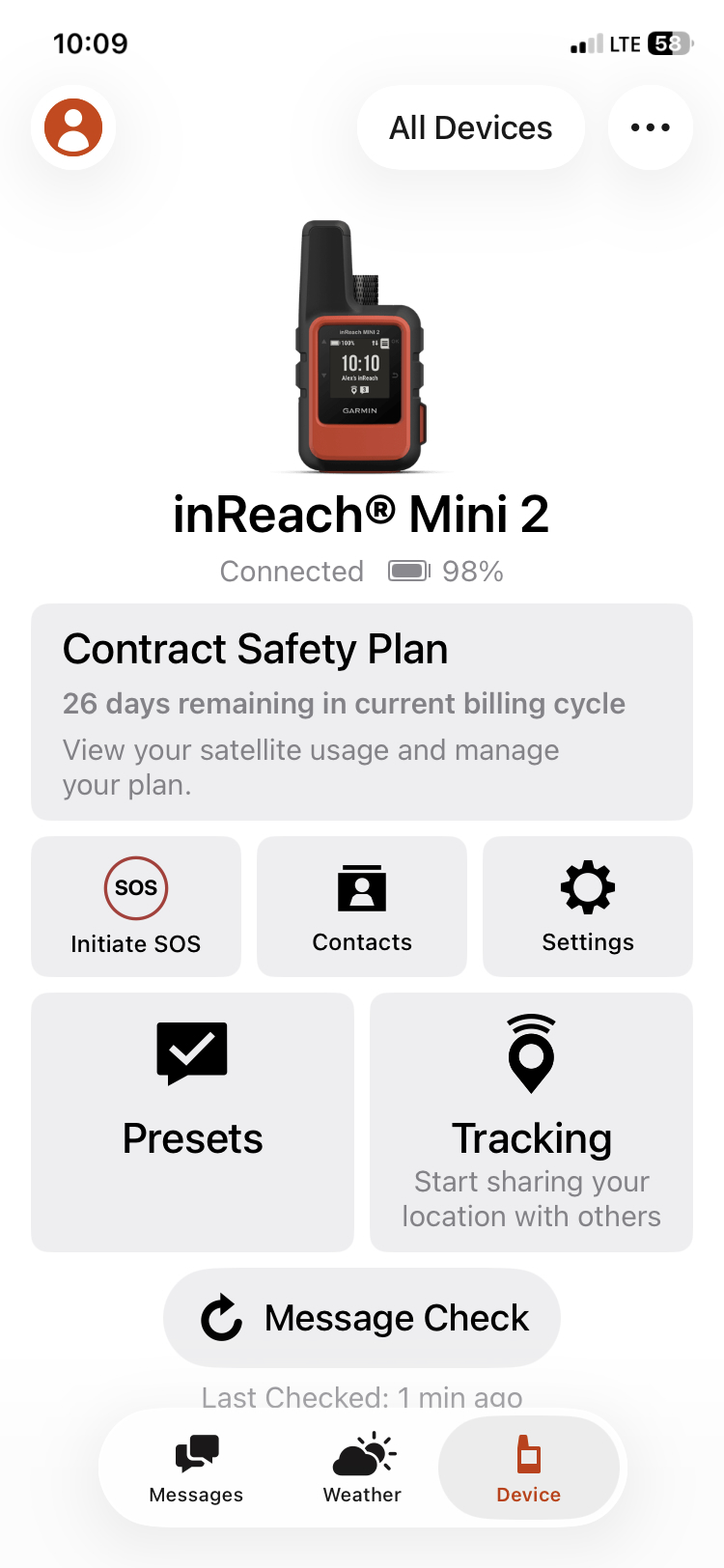
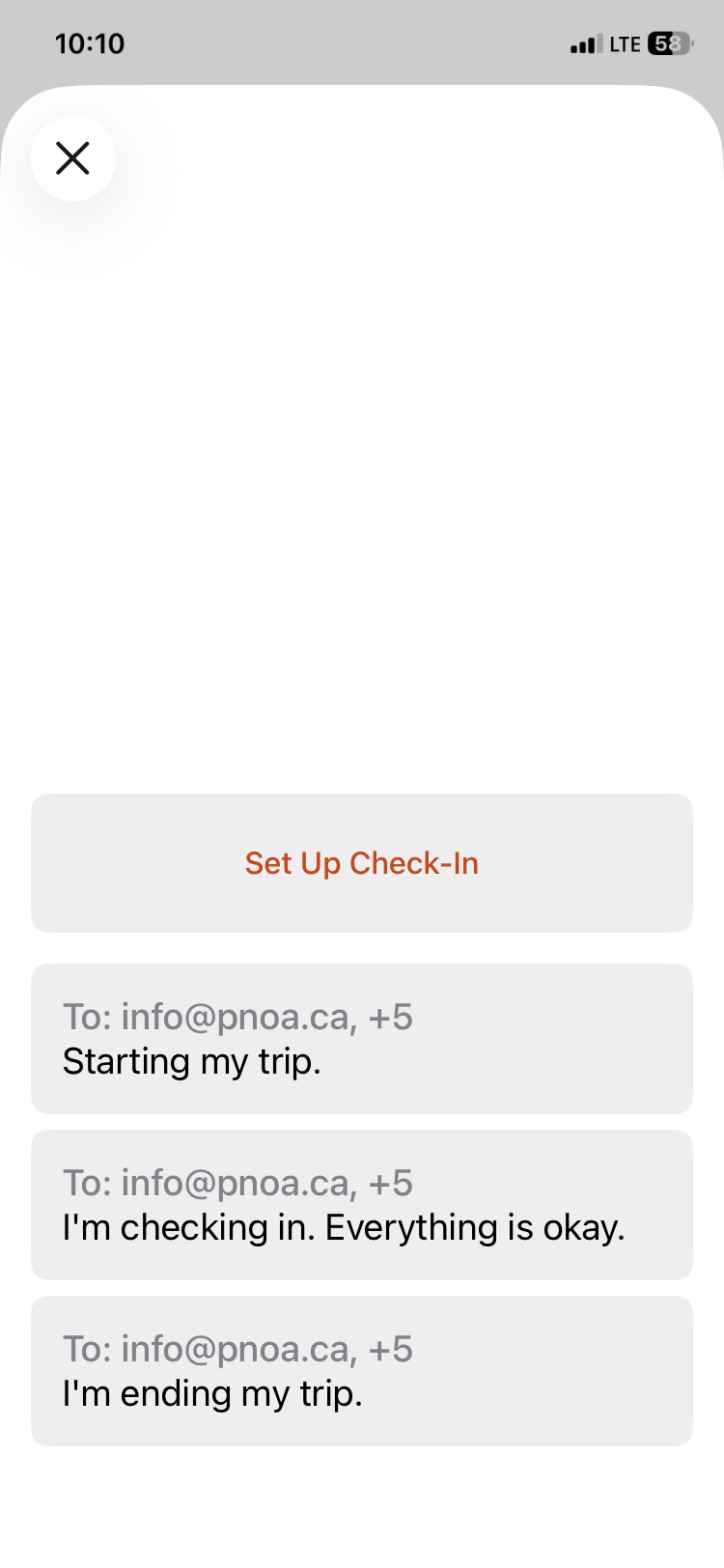
Tap Presets.
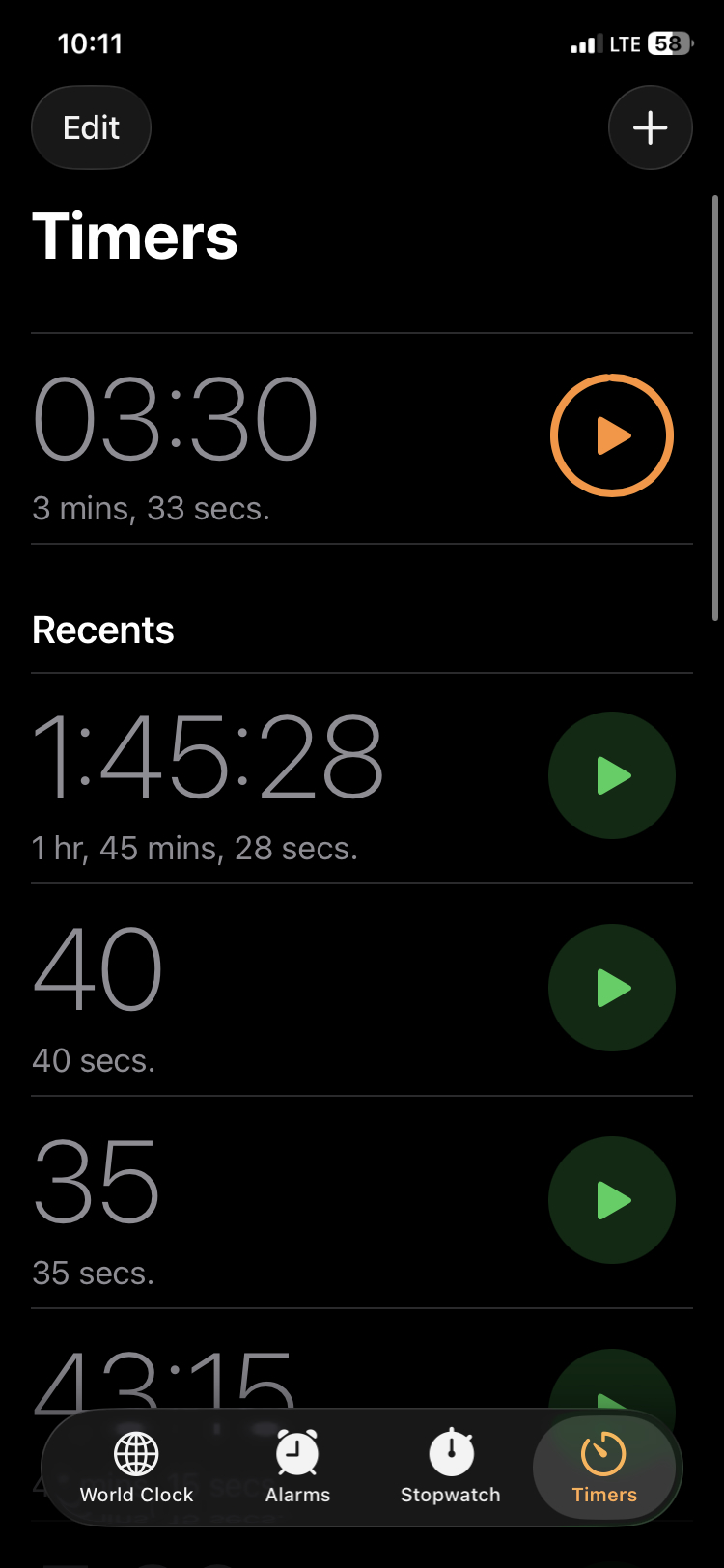
After sending a message, the Message Check icon may keep spinning, which can make you wonder whether the message was sent successfully.
I recommend setting a 3-minute timer. When the timer goes off, open the Device menu again. The Message Check sequence should be complete, and you can turn off the inReach Mini 2.